
What can you do in the InfraIO Pay app?
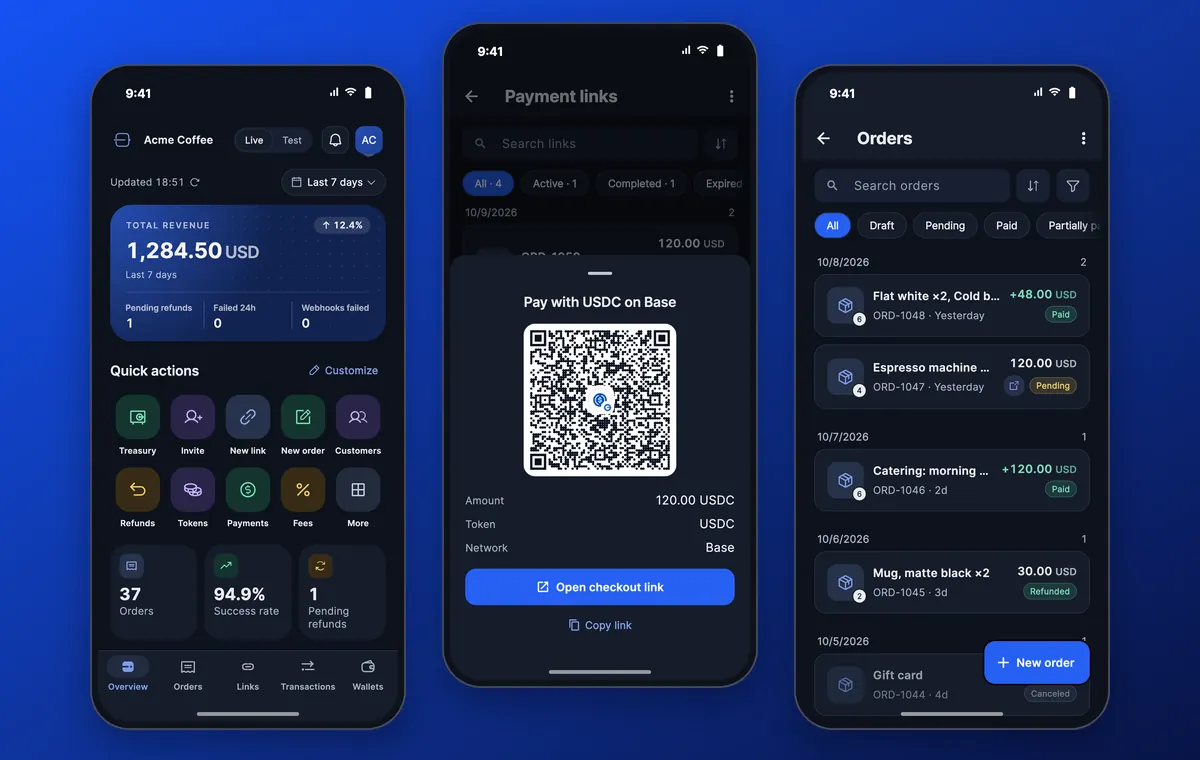
The app covers the daily work of taking payments. It is built for the person who runs the shop, not for a developer.
Everything below is shown with demo data from a made-up coffee shop. You will see your own orders and payments once you sign in.
- Create orders with items, a price and an optional customer email.
- Share a payment link or a QR code so a customer can pay on their own phone.
- Follow every order and payment, from pending to paid, in one list.
- Review and approve refunds when a customer asks for one.
- Choose where the money goes with your treasury wallet, one per network.
- Try it with test money before you take a real payment.
How do you create an order?
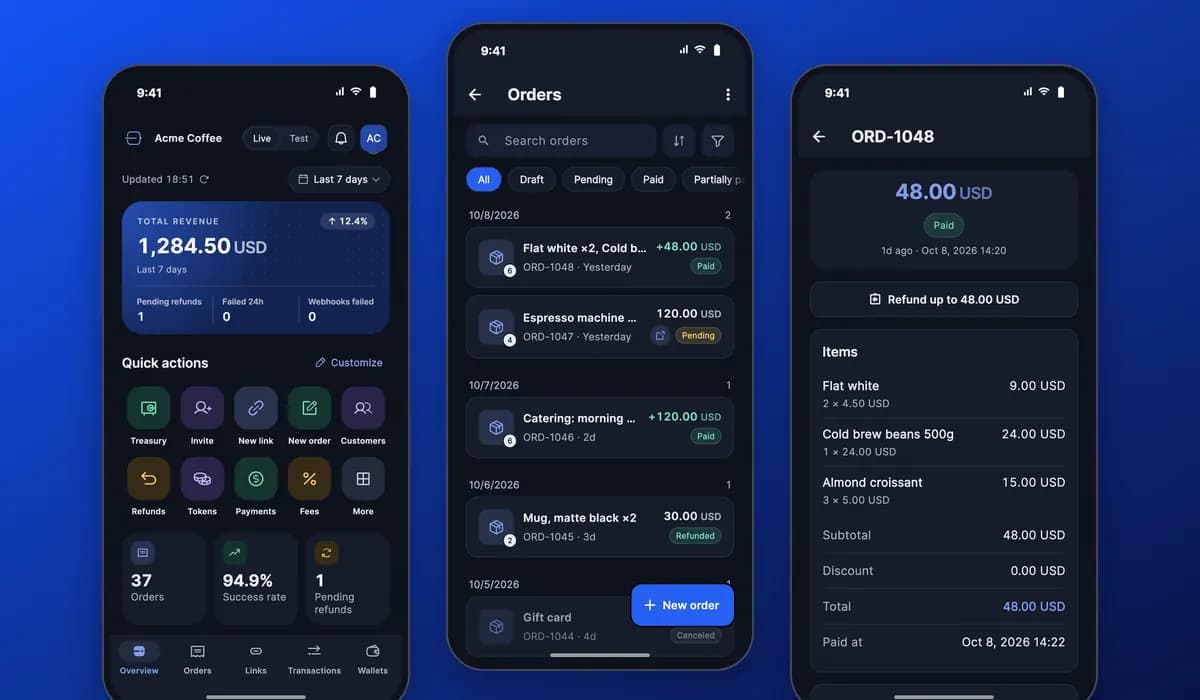
Open Orders and tap New order. Add what you are selling, with a name, a unit price and a quantity, or switch to a single amount if you do not need a list of items. You can add the customer's email and your own reference, such as an invoice number.
At the bottom of the form there is a switch to create a payment link with the order. It is off by default, so an order without a link is saved as a draft until you are ready to send it.
How do customers pay with a link or a QR code?
A payment link opens a ready-made checkout page where the customer picks a network and a stablecoin and pays from their own wallet. You do not need a website. You can send the link in a chat or an email, or show the QR code on your phone or at the till.
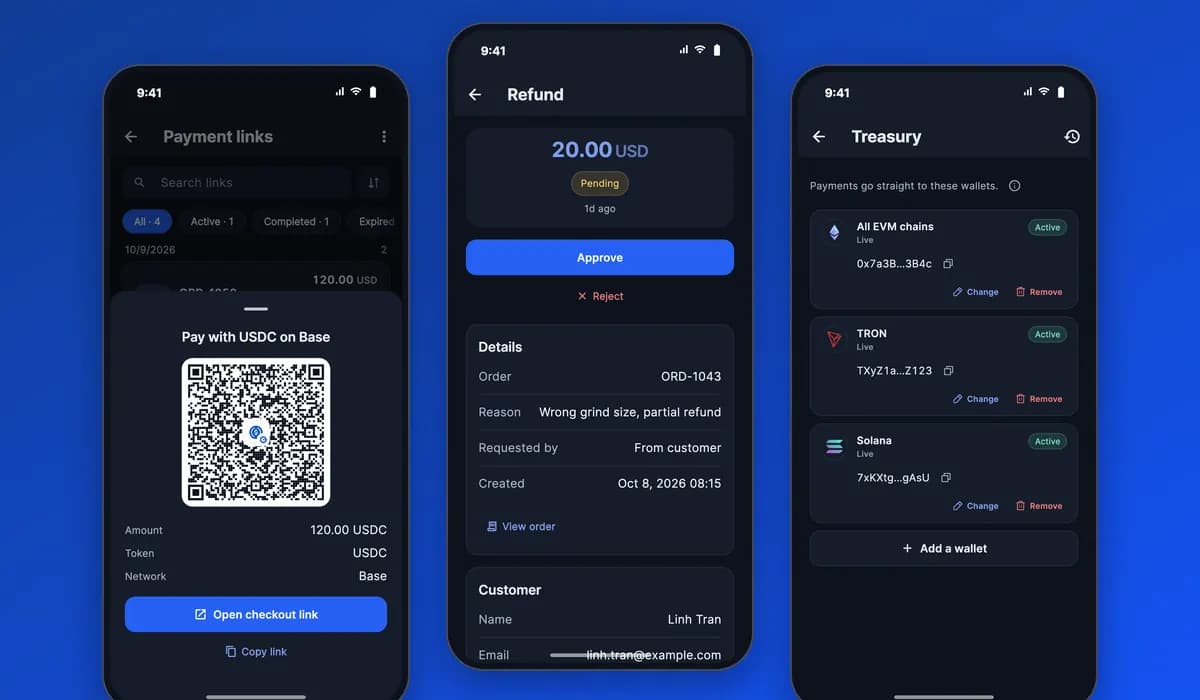
From the Payment links screen you can copy the link, share it, open the checkout page or show the QR code in full size. Each link shows its status, such as active, completed or expired.
- Copy or share the link in one tap.
- Show the QR code for someone standing next to you.
- Set how long a link is valid, for example 15 minutes or 24 hours.
How do you follow your orders and payments?
The Overview shows your revenue for the last 7 days, how many orders you have, your success rate and anything that needs attention, such as a refund waiting for you. Under it, quick actions take you straight to a new order, a new payment link or your customers.
The Orders list can be filtered by status: draft, pending, paid and more. Open an order to see its items, the customer, the amount received, the fees and the network it was paid on. Transactions and Customers give you the same view by payment and by person.
How do refunds work?
A refund can start from you or from your customer's request. In Refunds you see each one with its reason and its status: pending, approved or executed. Open a request, read the reason, then approve or reject it. The app asks you to confirm before anything moves.
You can refund up to the amount the customer paid. You can also start a refund yourself from a paid order with the Refund button.
Where does the money go?
Straight to your own treasury wallet. A treasury wallet is a wallet you own, one for each network you accept. InfraIO Pay never holds your sales, so there is no balance to withdraw. You can read why this matters in non-custodial stablecoin checkout.
In the Treasury screen you add or change the address for each network. When you save a new address, the app warns you that it is locked for 24 hours, which helps protect you if someone else gets into your account. If you already use a passkey wallet in the app, a Use my wallet button fills the address for you.
Which task is in which part of the app?
A quick map of the screens you will use most.
| I want to… | Open this in the app |
|---|---|
| Create an order | Orders, then New order |
| Get a link or QR code to send | Payment links, or the link switch when you create an order |
| See what I earned this week | Overview |
| Check one payment | Transactions, or open the order |
| Refund a customer | Refunds, or Refund on a paid order |
| Change where money arrives | Treasury |
| Practise without real money | The Live and Test switch at the top |
What does it cost and when can you get it?
There is no setup fee and no monthly fee. InfraIO Pay takes a small fee only when a customer's payment goes through. The full schedule is on the pricing page.
The InfraIO Pay app is coming soon to the App Store and Google Play. Nothing is available to download today. Until then you can start from the web version, and the app will use the same account. New to the idea? Start with What is InfraIO Pay? or see how to accept crypto on your store. If you also want a personal wallet, read about the InfraIO Wallet app.